Claude, in 30 minutes
A picture-by-picture setup guide for non-technical business owners. By the end, Claude knows who you are, what your business does, and what you're trying to build — and remembers every time you talk to it.
~10 min reading ~30 min setup Mac only
The Claude chat at claude.ai forgets you every conversation. Claude Code is the same Claude, running on your machine, with access to your folders and a memory that survives between sessions. It reads your files, saves your plans, and remembers what your business does. Setup is one-time.
A Mac. Windows guide coming soon; this one is Mac only.
About 30 minutes.
A credit card. Claude Pro is $20/month, and you need it for Claude Code.
This guide open on your phone or another window, so you can follow along without losing your place.
First, go to claude.ai/download in your browser and click the big download button.
Open the downloaded file. Drag Claude into your Applications folder, just like any normal Mac app.
Open Claude. Sign in, or create an account if this is your first time.
Then subscribe to Claude Pro. Click your profile picture, choose Subscribe, and pick the $20/month plan. The free plan is only the chat window; Pro is what gives you Claude Code, the version that works in your folders.
This folder tells Claude how to work with non-technical business owners. You'll open it in Claude in the next step.
Download starter folder (.zip)
When the download finishes, open your Downloads folder and find claude-code-starter.zip.
Double-click it. You'll get a folder called claude-code-starter.
Move that folder into your Documents folder. Avoid the Desktop — if your Desktop is synced to iCloud, the sync can interfere with Claude reading the files. Documents is the safe default.
Open Claude, the app you installed in Step 1.
At the top of the sidebar, click the Code tab. Then click the small folder icon at the bottom of the chat area and pick the claude-code-starter folder you just saved.
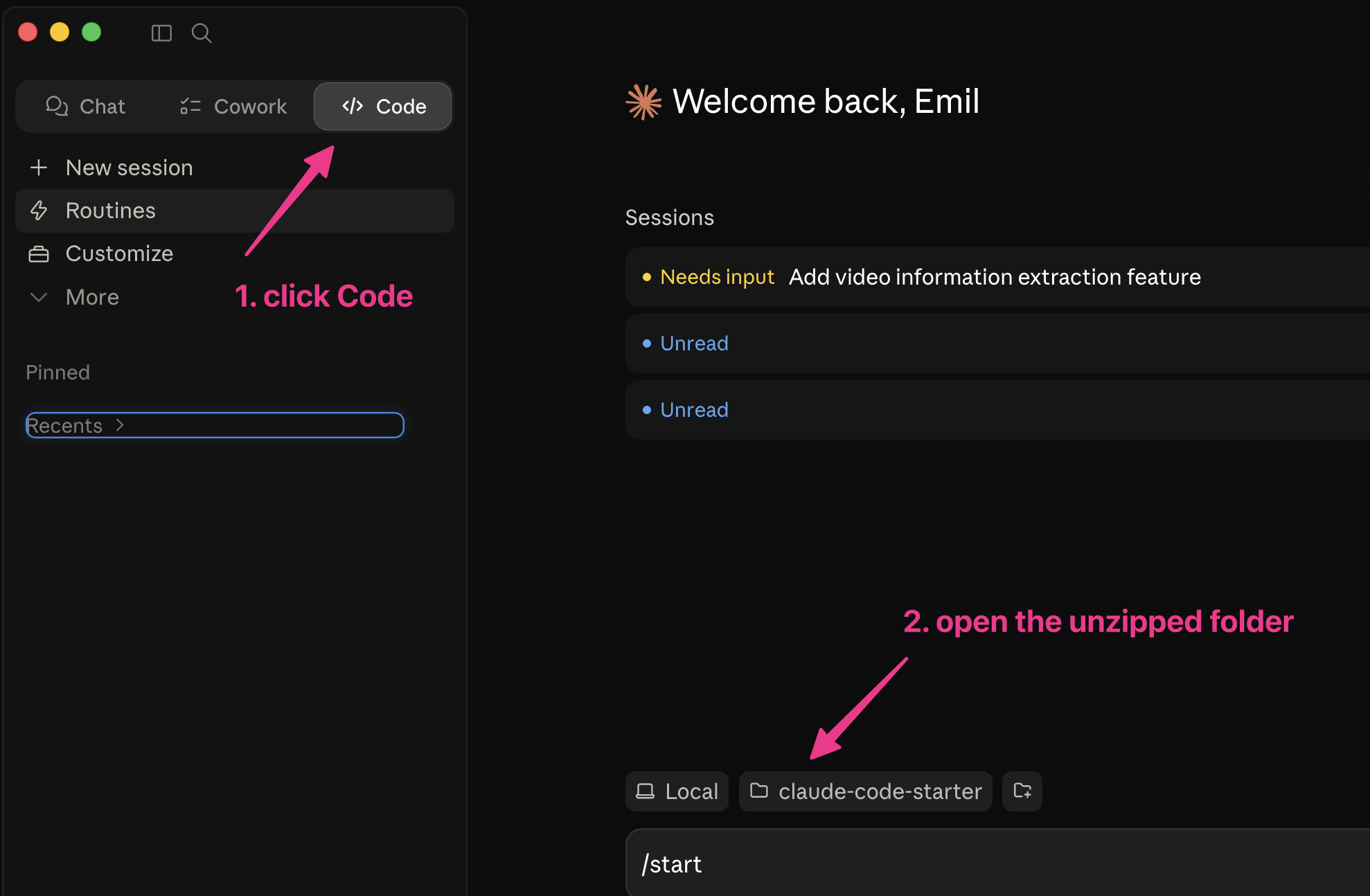
If Claude asks "Trust this workspace?", click Trust Workspace. If macOS asks for permission to control System Events, click Allow.
In the Claude chat, type this and hit enter:
/start
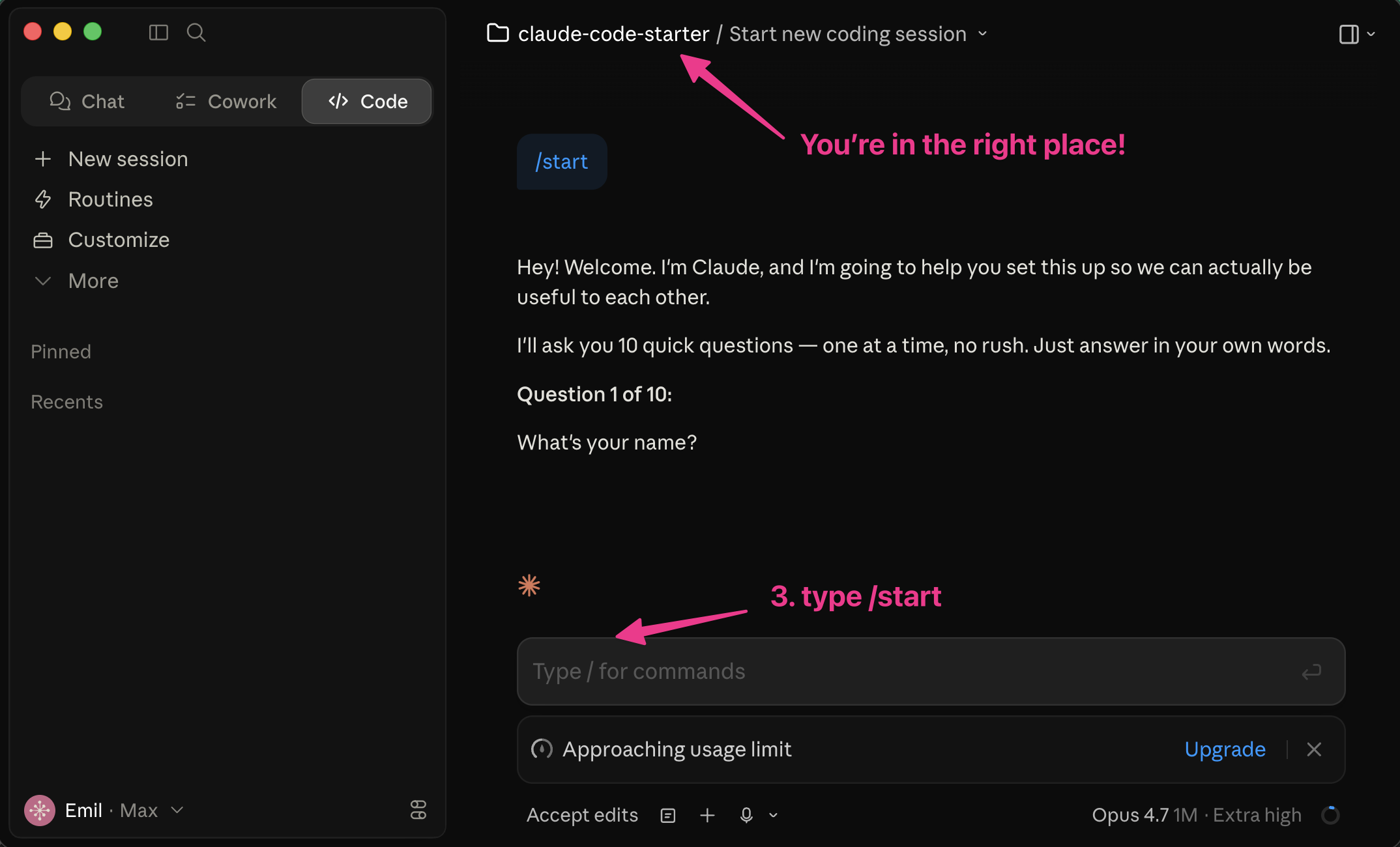
Claude will ask you 10 questions about you and your business, one at a time. Answer like you'd answer a friend. If you don't know something, say "I don't know" and Claude will move on.
When you're done, Claude saves what you said and writes you a starter plan you can come back to anytime.
Talk to Claude like you'd talk to anyone — drafting a Slack message, summarizing an article, looking at your calendar, brainstorming, untangling a messy idea. It does all of these.
To come back later, open Claude, click the Code tab, pick the same folder. It remembers what you told it.
To add a tool — Slack, Calendar, your CRM — just say "I want to connect Slack." Claude walks the rest.
To save a plan, ask Claude to "save this as a plan." You'll find it in plans/.
Don't try to do everything in a weekend. One new thing at a time. That's the fastest way to actually keep using it.
After /start, these are the moves that turn Claude from a smart assistant into a teammate who knows your business. None of them are technical.
Name your Claude. Tell it: "from now on your name is Coach Claude" (or Coach, or Ops, or whatever fits). Tiny change, big shift — it stops being a tool and starts being someone on your team.
Hand over your voice. Drop 2 or 3 of your own emails, posts, or messages into the folder and ask Claude to "extract my voice rules — tone, phrases I use, things I'd never say." From then on, every draft sounds like you, not generic AI.
Keep an ideas inbox. Ask Claude to create an IDEAS.md file. Whenever you wish Claude could do something — connect a tool, automate a workflow, build a shortcut — add a line. You'll work through them together. Most people forget the good ideas; the file fixes that.
One more habit worth picking up: when something feels repetitive, say "could we automate this?" or "is this worth turning into a shortcut?" Claude will usually say yes and offer to build it. You don't need to know what's possible — you just need to notice the friction.
Once Claude knows you, the next move is feeding it from where you actually are — your phone, your inbox, the tools you already use. Each of these is a short, standalone guide.
→Drone — send screenshots from your phone to Claude →Connect Slack to Claude →Connect Google Calendar →Connect your CRM"I clicked Open Folder and Claude is just chatting normally."
You probably picked the wrong folder. Make sure you picked claude-code-starter, not Downloads or Desktop.
"Where do I see the files Claude is creating?"
Open the claude-code-starter folder in Finder. You'll see plans/ and decisions/ filling up as you work.
"Claude is asking me to use Terminal."
Tell Claude exactly this: "I'm not comfortable with Terminal. Walk me through this one step at a time, slowly." The black screen looks intimidating, but it's just typing.
"I want to add Slack."
Tell Claude: "I want to connect Slack." Same for Calendar, email, or your CRM. You don't need a new guide before you ask.
"I messed up. Can I start over?"
Yes. Delete the claude-code-starter folder and download a fresh copy. Nothing breaks.
"Claude is moving too fast."
Paste this: "I'm a business owner using Claude as a second brain. I'm intelligent but not technical. Take me through everything step-by-step. Ask me questions. Save the plan so we can come back to it."
If you get stuck, or you want a heads-up when the next guide drops, email me at emil@ultrawinning.com.